Automated migration
Automated migration is currently in Pre-release.
Process Overview
Automated migration is designed to provide a zero-downtime, secure means of migrating to Temporal Cloud. This guide outlines the current process for transitioning Workflows from self-hosted Temporal Server to a namespace hosted within Temporal Cloud.
Namespace migration schedule
When planning a migration it is highly recommended to migrate in the order of least-critical to most-critical Namespace. Ideally, the project will begin with Namespaces designated as "testing", where downtime is an acceptable outcome of the testing process. From there, prioritize migrations based on order of least potential impact.

Project phases
The migration process is separated into several phases, part of which involves coordinating with Temporal to create necessary cloud-side resources.
Migration involves the following phases:
- Prepare - Initial preparation involves collecting and evaluating key data points from the self-hosted clusters. Collected data will be evaluated by Temporal to ensure eligibility for migration.
- Setup - Once eligibility has been verified, configurations for the self-hosted clusters will be modified to support the migration. All cloud-side components will be provisioned and the self-hosted S2S Proxy will be deployed.
- Test - Once all required components are in place, the migration process will be validated using a test Namespace.
- Initiate - At the conclusion of a successful testing process, migration of production Namespaces will begin.
- Finalize - After the Namespace has been transferred to Temporal Cloud and validated, the migration will be finalized.
Please review the additional notes section prior to planning the migration.
Phase 1: Prepare
In preparation for migrating to Temporal Cloud, the following data points must be collected and provided to Temporal via support ticket.
- List of Temporal Cloud Accounts. If you are new to Temporal Cloud, then the most common recommendation is to create a single Account that contains your Namespaces.
- Target Temporal Cloud provider/region per cluster. See the list of current regions.
- Server Configuration for each cluster.
- For each Namespace:
- Namespace name and its translated cloud-side name. Since Namespaces in Temporal Cloud follow a specific format, existing Namespaces must be converted to the new format.
- Namespace sizing metrics. These are used to properly size cloud-side resources for the migration.
- Custom search attributes (if any). Temporal must ensure that your custom search attributes, specifically when using SQL-based visibility store, are compatible with Temporal Cloud.
Capture cluster configurations
Temporal must review your self-hosted server configurations to ensure compatibility. For modern versions of Temporal OSS, run the following command against each of your clusters:
temporal operator cluster describe --address <frontend:7233> --output json
For server versions 1.28.1 and prior, use one of the following alternate methods:
tctl --address <frontend:7233> admin cluster describe
or
grpcurl -v -plaintext <your temporal address and port> temporal.server.api.adminservice.v1.AdminService.DescribeCluster
Capture Namespace metrics
It is vital that current usage patterns for production Namespaces are well understood, as this data is used for cloud-side resource planning. For each Namespace, collect the following metrics:
- Total number of open/closed Workflows
- Total storage used
- Current retention policy. Note that this may differ from the default retention policy in Temporal Cloud.
- Peak action per second (APS). See the section below for instructions on collecting these metrics.
- If you use custom search Attributes:
- provide CustomSearchAttributeAliases of your Namespace (see command below).
- provide the VisibilityStore used (e.g. ElasticSearch or SQL)
Use the following command to capture CustomSearchAttributeAliases, if needed:
temporal operator namespace describe
Report collected data
Use the following template to provide all collected data to Temporal via support ticket.
List of Accounts:

<for each cluster>
Cluster Name:
Target Cloud/Region:
Type of Visibility Store:
Cluster Configuration:

List of Namespaces:
   <for each Namespace>
   Namespace Name:
   Translated Name:
   Metrics:
   Custom Search Attributes:
   <end>
<end>
Phase 2: Setup
Once the migration has been approved, the next step is to prepare both the self-hosted clusters and Temporal Cloud resources for the migration.
Proceed only when your request has been approved by Temporal.
Prepare Temporal Cloud Namespace
For each Namespace to be migrated, create an empty Namespace in Temporal Cloud to serve as the migration target. Since migration cannot proceed into a Namespace that's already in use, the Namespace should remain empty (no Workflows). Apply any required custom search attributes.
Be sure to adjust the rate limits of your Namespace as needed and create any custom search attributes that are required.
If you are new to Temporal Cloud, consider your desired connectivity path to your Namespace. You may connect over the public internet or via private connectivity.
Modify cluster configuration
The dynamic configuration of your self-hosted cluster must be modified to facilitate the migration.
Coordinate closely with Temporal for this step of the process.
Adjust the maximum connection keepalive time to match the setting in cloud.
frontend.keepAliveMaxConnectionAge:
  - value: '2h'
If you have previously enabled Global Namespace, the Failover Version Increment must be approved by Temporal. This is critical, since the value may only be set once and cannot change.
If you've never enabled Global Namespace, then you may enable it and set the Initial Failover Version to a unique value (between 1 and 100). Enable by updating the clusterMetadata and the dcRedirectionPolicy. When complete, restart all Temporal services (frontend, history, matching, worker), starting with the frontend.
dcRedirectionPolicy:
  policy: 'all-apis-forwarding'

clusterMetadata:
enableGlobalNamespace: true # add this
failoverVersionIncrement: CHANGEME # usually 1000000, but coordinate with Temporal. must match cloud-side migration server
masterClusterName: _NO_CHANGE_
currentClusterName: _NO_CHANGE_
clusterInformation:
  _NO_CHANGE_:
    enabled: true
    initialFailoverVersion: CHANGEME # use unique number between 1 and 100 for each server
    rpcName: _NO_CHANGE_
    rpcAddress: _NO_CHANGE_
After all services have restarted, verify the configuration using:
temporal operator cluster describe
The following sample output is expected:
"failoverVersionIncrement": "1000000",
"initialFailoverVersion": "the number you picked"
"isGlobalNamespaceEnabled": true
Prepare mTLS certificates
TLS is used to secure the communications channel for migration. Generate new certificates following the process outlined here. The certificates will be used by the S2S Proxy.
Provide the certificates to Temporal via a support ticket.
S2S Proxy configuration
The S2S Proxy requires a cloud-side inbound endpoint. Proceed with deployment only after receiving the endpoint from Temporal.
The proxy provides API forwarding over a secure 2-way tunnel to Temporal Cloud. The self-hosted proxy will initiate an outbound connection (TCP 8233) to its cloud-side counterpart and establish the 2-way tunnel. If there are firewalls in-path, ensure that they permit this outbound connection.
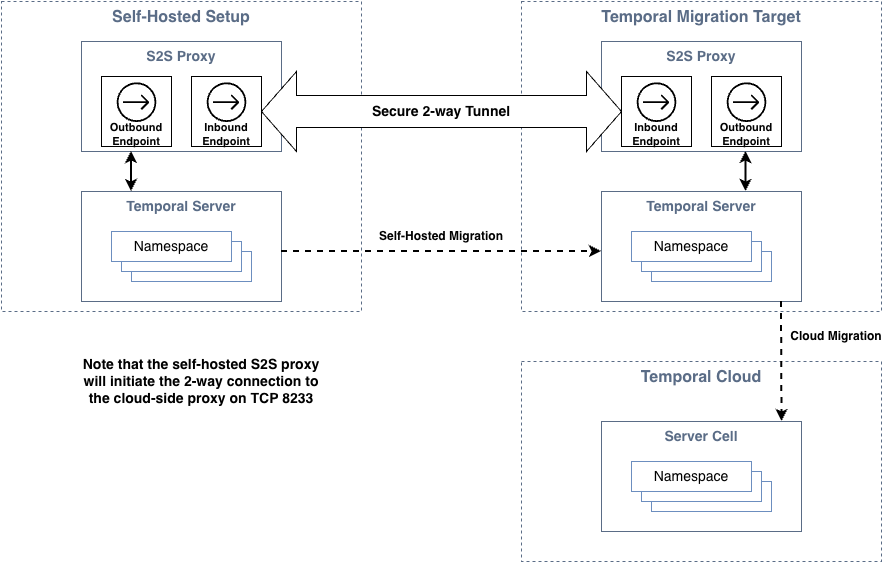
Use the following procedure to deploy the proxy:
- Obtain the latest Docker image from the temporalio/s2s-proxy repository.
- Gather the mTLS certs generated in the previous step.
- Deploy 1 replica of the s2s-proxy (minimum 4 CPU and 512mb memory). For Kubernetes users, use this helm chart example as a reference. See the example configuration file as a reference. Note that it is possible to deploy more than 1 replica. If more than 1 replica is deployed, you must update Temporal with the number of replicas used so that an identical number may be configured on the cloud-side.
- Test access using the command below. It should display the information of the migration server.
temporal operator cluster describe --address {the-outbound-external-address-of-your-proxy}
Once connectivity has been verified, notify Temporal so that connectivity may be validated from the cloud-side proxy.
There are multiple metrics available on the S2S proxy (prometheus endpoint: proxy-pod-ip:9090/metrics). These are helpful for monitoring the overall health of the proxy. In particular, the metric
temporal_s2s_proxy_mux_connection_active
will monitor connectivity to the cloud-side proxy.
Phase 3: Testing
Testing should proceed using either a newly created Namespace or else one that is considered to be non-production. In either case, test Workflows should be utilized. It is ideal to have a mix of completed, active, and new Workflows to use during testing.
Testing uses the following process:
- Create or identify a non-production Namespace that can tolerate data loss in the event of issues.
- Create target cloud-side Namespace and add the Namespace definition to the S2S Proxy configuration.
- Run test Workflows agains the Namespace.
- Perform a complete end-to-end migration for the Namespace (see remaining phases for full process).
Testing is considered successful if all data from the self-hosted deployment is migrated to cloud.
Phase 4: Initiate
The sections below outline the process for initiating the migration.
Migration start
Temporal will initiate the migration. During this process, the self-hosted Namespace remains active while the cloud Namespace becomes passive. Workflows are replicated from the self-hosted Namespace to the cloud Namespace. Once cloud Namespace has fully synced with self-hosted Namespace, migration is ready for handover.
The following command is used to start the migration:
tcld migration start --endpoint-id <endpoint-id> --source-namespace <source-namespace> --target-namespace <target-namespace>
Monitor
During the initial sync, it is important to monitor the overall process to ensure progress is being made. While Temporal will monitor from the cloud-side, progress may also be monitored from the self-hosted side using the replication_stream_stuck metric.
The following command may also be used to monitor the migration progress:
tcld migration get --id <migration-id>
Handover-to-cloud
Once the sync process has completed, Temporal will flip the roles of the self-hosted and cloud Namespace. At this point, the cloud becomes active and the self-hosted Namespace becomes passive. Workflows are then replicated from the cloud to the self-hosted server.
The following command is used to trigger the handover:
tcld migration handover --id <migration-id> --to-replica-id <to-replica-id>
When using this command, replace <to-replica-id> with cloud when handing over to Temporal Cloud. Replace
<to-replica-id> with on-prem when handing back to the self-hosted setup.
Phase 5: Finalize
Final validation
Use the following checklist prior to finalizing the migration:
- Confirm that workers can access Namespaces. Either via public internet or private connectivity.
- Understand how to access metrics for your Namespace on Temporal Cloud.
- Monitor general Workflow metrics (schedule to start latency, start v.s. completion rate, sync match rate, etc).
- Learn how capacity management works in Temporal Cloud.
- Plan for a worker tuning session - performance change between Temporal Cloud v.s. self-hosted cluster, which could lead to unexpected symptoms and optimizations.
- Know how to reach out to your Temporal Solutions Architect (SA) and Account Executive (AE) for assistance.
Confirm complete
Once a Namespace has been transferred to the cloud and validated, the migration will be completed. Note that this step is final and may not be undone. Once performed, Workflow replication from the cloud Namespace to the self-hosted server is halted.
The following command is used to confirm the migration:
tcld migration confirm --id <migration-id>
or to abort and roll-back changes without impacting your Workflows, if needed:
tcld migration abort --id <migration-id>
Transfer clients to cloud
There are two options for switching Temporal clients to the cloud.
Option 1 (recommended)
Deploy two sets of Temporal clients: one pointing to your Temporal server and one to the Cloud Namespace endpoint. This is the recommended option since your Workflows will continue to make progress during the handover, even if your cloud Temporal client is unable to access the cloud (due to misconfiguration, for example). The process is as follows:
- Direct your cloud-based Temporal clients to the cloud Namespace endpoint. Initially, these clients will connect and send Poll requests but will not receive any tasks.
- Start migration. Your self-hosted Namespace is active while your cloud Namespace is passive (or standby). Your cloud Temporal clients can begin receiving tasks, but all requests from cloud clients to the Cloud Namespace will automatically forward from the cloud to your self-hosted server.
- Hand over Namespace to the cloud. Your cloud Namespace becomes active and your self-hosted Namespace becomes passive. All requests from your self-hosted Temporal clients will automatically forward from your server to the cloud.
- Complete migration. Your self-hosted Temporal clients will no longer receive any tasks from your server, allowing you to stop these clients.
Option 2
Deploy one set of Temporal clients and switch the Namespace endpoint during migration. With this option, if your workers are misconfigured during the switch, then it is possible that Workflows can stop making progress. It is important to ensure that all workers maintain connectivity to cloud to avoid this scenario. The process is as follows:
- Start migration.
- Switch your Temporal clients to point to the cloud Namespace endpoint. Requests from your Temporal clients will automatically forward from the cloud to your server. Alternatively, you may switch Temporal clients to the cloud Namespace endpoint after handover.
- Hand over Namespace to the cloud. Requests from your Temporal clients will now be served by the cloud and will not be forwarded to your server.
- Confirm migration completion.
Additional notes
Limitations
The following are known limitations.
- OSS server versions 1.22 or newer are required. Refer to the upgrade procedure as needed.
- History shard counts must be a multiple of two.
- Enabling payload encryption as part of migration is not yet supported. If payloads are already encrypted in your self-hosted server via data converter, then they will remain encrypted during and after migration.
- If you have multiple self-hosted servers and they are all configured with the same cluster name (by default Temporal
uses 'active' as cluster name), they cannot be connected to a single migration server simultaneously due to cluster
name collision. There are 2 available options:
- Migrate one server at a time using a single migration server.
- Create multiple migration servers (one for each self-hosted server) if you need to migrate all servers simultaneously.
- If you are using multi-cluster replication in your self-hosted setup and have previously failed over Namespaces, then
this may impact your eligibility for automated migration. Specifically, whenever Global Namespace has been previously
enabled the following restrictions apply:
- Initial Failover Version must be less than or equal to 1,000,000
- Failover Version Increment must be a divisor of 1,000,000
- OSS supports cross-Namespace commands (e.g., parent-child, SignalExternal, CancelExternal) through the
system.enableCrossNamespaceCommandsconfiguration. This configuration is disabled on Temporal Cloud. Thesystem.enableCrossNamespaceCommandsconfiguration must be disabled, and code using cross-Namespace calls must be updated or removed prior to migration.
Special dynamic configuration for Version 1.22.x-1.23.x
Temporal versions 1.22.x and 1.23.x include support for stream-based replication, but it is disabled by default. Since those releases, stream-based replication has been validated as more reliable than the poll-based replication that remained the default in 1.22 and 1.23.
When preparing for an S2C migration on these versions, configure the following dynamic settings to enable stream-based replication:
history.enableReplicationStream:
  - value: true
Enabling this configuration will require a restart of your history pods.
Frequently asked questions
Why does it matter if custom search attributes are used?
Custom search attributes must be mapped to the Namespace in Temporal Cloud. This process differs depending on the type of data store used for visibility.
What Workflows are migrated by default?
Open workflows are always migrated. You may specify a date range for closed Workflows. Limiting the time range for closed Workflows will greatly reduce the amount of time it takes to migrate a Namespace. Your cloud-side Namespace must be configured with your desired retention period prior to starting the migration.
I have a long retention period for my Workflows. Is this compatible with Temporal Cloud?
Occasionally, self-hosted retention periods are in excess of what is supported in Temporal Cloud. In these cases it is recommended to utilize archival to store closed Workflows that cannot be migrated. In general, archival is recommended over large retention periods since the extra data can stress the persistence layer of the system.
How to gather self-hosted metrics
Temporal Server (version > 1.17) provides an action metric. You may use Grafana to capture and display this metric. Use this sample dashboard as a reference. To determine actions per second (APS) you may use the following promql queries.
sum (rate(action{service_name="frontend"}[1m]))
sum (rate(action{service_name="frontend"}[1m])) by (exported_namespace)
The first query will calculate total APS. The second will isolate the metric per Namespace.
For Datadog, the following widget will calculate actions per second:
{
    "title": "Average Actions per Second",
    "type": "query_value",
    "requests": [
        {
            "formulas": [
                {
                    "formula": "query1"
                }
            ],
            "queries": [
                {
                    "name": "query1",
                    "data_source": "metrics",
                    "query": "sum:io.temporal.server.action.count{$server-name}.as_rate()",
                    "aggregator": "avg"
                }
            ],
            "response_format": "scalar"
        }
    ],
    "autoscale": true,
    "precision": 2
}